Windows 24H2 Hates my Webcam Drivers - Tales from Windows Update Vol. 1
Sometime last week, Microsoft's Windows 11 24H2 update began hitting my organization's machines. Since we use Intune to manage our updates, this process was anything but smooth as the update seemed to slowly march across our systems. Luckily, I had implemented a process where each Windows update would be manually tested in three stages using low-priority machines. Naturally, this meant my own machine, three spares, and the machines in our meeting rooms. This meant that the update had already been thoroughly tested by the time it began rolling out. Across these three testing stages, I hadn't seen any issues. What my users experienced was a different story...
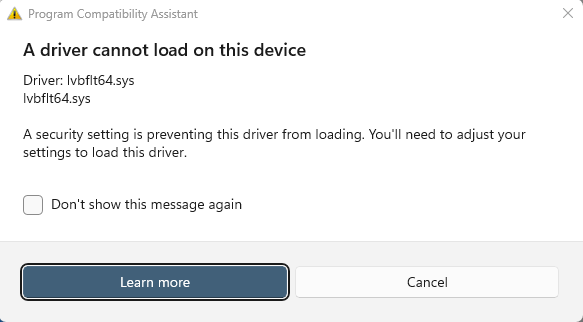
As soon as my users began accepting the restart prompt to finish the update, a few of them noticed a "A driver cannot load on this device error". My users are pretty great about proactively reporting issues so it wasn't long before I was inundated with helpdesk tickets. This error code was new to me so I turned immediately to my trusty search bar. Searching "lvbflt64.sys driver cannot load" brought up a ton of results, most of them referencing Windows Memory Integrity settings in some way. We had had this feature enabled for a long time, so I was confused as to why it would be causing issues now. I learned that this feature would prevent drivers deemed by Microsoft to be "vulnerable" from loading on the system. I figured that disabling the feature temporarily (users still need to have their meetings) while I looked for a fix would be the best solution. I reached out to my boss, discussed the risks, and requested an approval for the change. While that began rolling out to my users through Intune, I began digging further into the issue.
Now you may be asking: "Why wasn't this caught in your testing?" Unfortunately, the only testing system that was attached to one of these webcams did not experience the issue. This was my own system, so maybe my magical sysadmin aura was a factor. Regardless, I have added "webcam" functionality as one of my essential tests before allowing a Windows update to roll out to my userbase. Anyway, back to researching.
I found my solution in the first search result. If you read the article, you'll see that this user was attempting to enable the memory integrity setting, which was blocked by the incompatible driver. I suspect that what happened with my systems is that they attempted to install a new driver for the webcam as part of the update, which didn't work since memory integrity was already enabled. I'm not certain however, and plan on digging deeper in the future. The indicates that installing an app called "Logitech Camera Settings" will install drivers that are compatible with the memory integrity feature. I installed the app on a test machine and hoped for the best.
Of course, it didn't work at first. I surmised that I might need to remove the old drivers before the new one can be installed. I headed over to device manager and removed the "Logitech C910 Webcam". It appeared under two categories: Imaging Devices and Universal Serial Bus Controllers. When I uninstalled the device it also prompted me to attempt to uninstall the drivers. Perfect. Once the device had been fully removed, I installed the Logitech Camera Settings app once again. I initiated a "Scan for hardware changes" in device manager and voila, the camera showed up as "USB Webcam" under "Cameras" in device manager. No error icon either. I opened the camera app to verify that the webcam was now functioning and all seemed well.
I'm not sure why the issue with memory integrity only cropped up with this 24H2 update, or why it didn't appear across all of my systems. Nonetheless, I'm glad this one was an easy fix.